The Acquisition PC: The Forgotten Component in Your Dental Imaging Chain

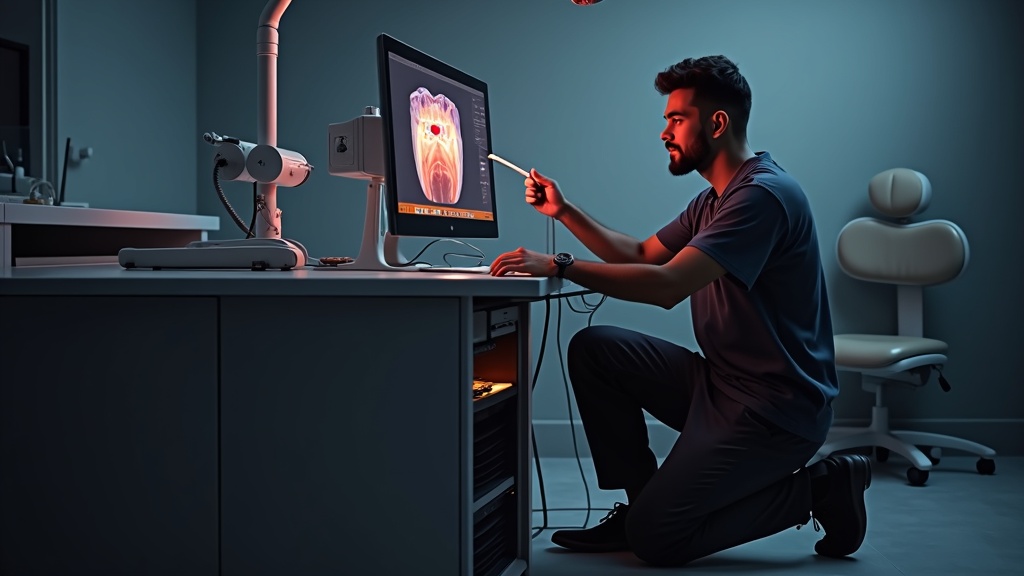
In July 2026, researchers at TrendAI and Trend Micro documented a Russian-speaking threat actor operating as “bandcampro,” who jailbroke a Google Gemini CLI and used it as an active hacking agent driving a command-and-control botnet. The flagship victim was not a bank or a logistics firm. It was a dental clinic — eight computers under the attacker’s control, including access to the practice’s OpenDental database. Infected machines beaconed every five seconds over HTTPS and ran PowerShell on command. Persistence used WMI event subscriptions, scheduled tasks, and one task disguised as a OneDrive updater. Eight machines in a small clinic is, in practical terms, most of the clinic.
Why a Botnet Story Belongs in a Service Article
Ask which machines in a small dental practice are always powered on, run with local administrator rights, have never had a feature update applied, and are excluded from the IT provider’s patching policy because a vendor said patching might break the software. In most clinics the answer is the imaging acquisition workstations. They are the softest targets on the network, and they got that way because nobody owns them.
That ownership gap is the real subject here. Ask the practice’s IT provider about the pan workstation and you will hear “that’s the X-ray vendor’s box.” Ask the X-ray service technician and you will hear “that’s IT’s problem, I service the tube head.” Both answers are wrong, and the second one is the one this article exists to correct. The acquisition PC is imaging equipment, and it should be serviced and documented by the person who services the rest of the chain.
The Workstation Is Part of the Imaging Chain
This is not a rhetorical point. The acquisition workstation holds components that are functionally indistinguishable from hardware in the signal path:
- Calibration and reference files. Intraoral sensors ship with gain, offset, and defective-pixel maps generated at manufacture and matched to a specific serial number. On most systems these live on the workstation, not in the sensor. Lose them and the sensor produces visibly degraded images, or refuses to acquire at all.
- Sensor drivers and the imaging bridge. The TWAIN driver, vendor SDK, or capture bridge handing the image from detector to application. A version mismatch breaks capture as completely as a severed cable.
- Exposure and image-processing settings. Vendor processing — sharpening, contrast curves, noise reduction, and on pan and CBCT units, reconstruction parameters. These profiles are stored locally and are routinely lost or reset.
- The raw image data. Before filing into the practice-management system, the image exists in a local store or staging folder here. If that store is full, corrupted, or scanned by antivirus mid-write, the image is lost.
Every one of those faults arrives at the service desk as a broken sensor call, because a hardware symptom is what the practice sees.
Symptoms That Look Like Hardware but Are Not
Before ordering a replacement detector, work through the presentations that are workstation-side in origin:
- Intermittent capture failures. Some exposures land, some vanish. Rarely a detector fault; usually antivirus contention, a full disk, or a power-management event.
- Images not transferring to the PMS. Capture succeeds, the image appears in the acquisition app, and never reaches the patient chart. This is a bridge, permissions, or timestamp problem.
- A sudden contrast or density shift with no hardware change. Almost always follows a software or driver update that reset the processing profile to a default curve. Ask what changed and when.
- Long capture-to-display latency. Growing delay between exposure and display points at disk health, an oversized image store, or a real-time scanner inspecting every write.
- “Sensor not detected.” Frequently USB selective suspend powering down the port between patients. The device is fine; Windows put it to sleep.
- Timeouts on networked pan or CBCT units. Adapter power saving, an NIC that renegotiated to a lower speed, a changed IP, or a firewall profile that flipped from private to public.
The Service Checklist
Run this alongside the radiation and QA testing visit. It adds roughly thirty minutes and prevents most of the callbacks above.
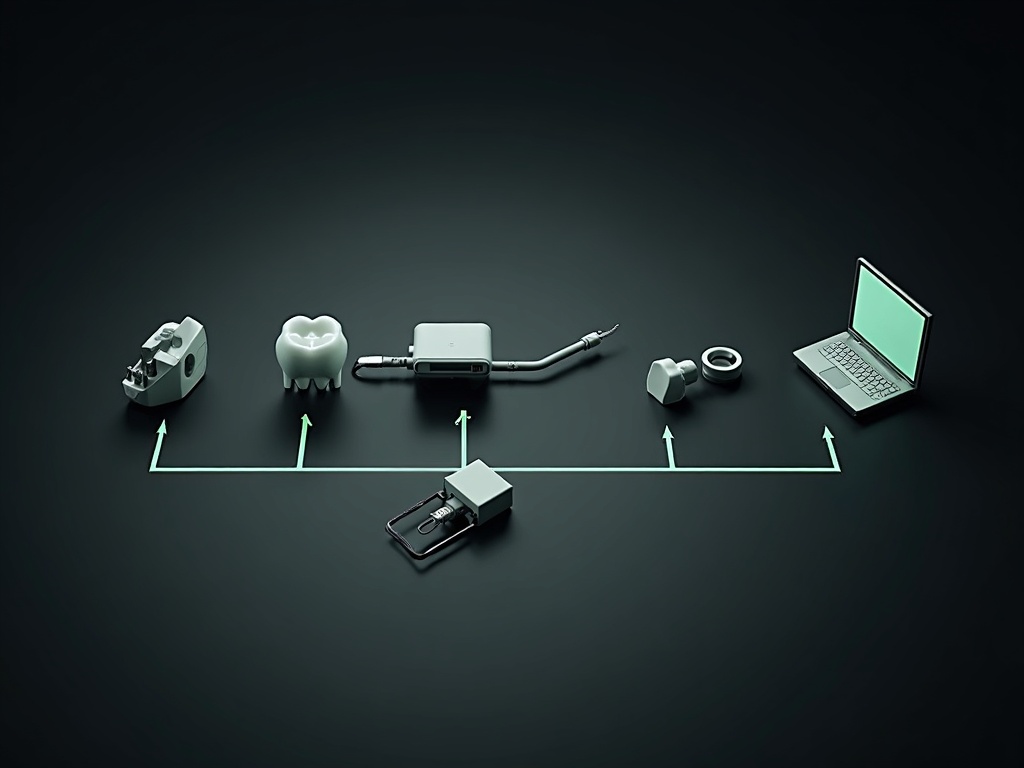
- Version matrix. Record the acquisition software version and every sensor and interface driver version, then check them against the vendor’s supported compatibility matrix. Mismatched-but-working combinations are an outage waiting for a reboot.
- Power management. Disable USB selective suspend globally and on each USB root hub in Device Manager. Disable PCIe link-state power management. Set the active power plan to high performance and confirm the machine is not sleeping or hibernating.
- Runtimes. Verify the .NET, Visual C++ redistributable, or database runtime the vendor requires is installed at the required revision. Vendor installers frequently do not repair these after an OS update.
- Antivirus and EDR exclusions. Confirm exclusions for the image store path, the acquisition executable and its service, and any local database files. This is the most common cause of intermittent capture failure and corrupted images, and it silently reappears whenever the security product or its policy is rebuilt.
- Disk space and drive health. Check free space on the image volume — CBCT volumes consume it fast — and pull SMART attributes. Reallocated and pending sectors predict the failure that takes the calibration files with it.
- Backup verification. Confirm the backup includes the raw image store and vendor configuration directory, not just the PMS database, and that a restore has been tested. An untested backup is a hypothesis.
- Time synchronisation. Verify the workstation syncs to the same source as the PMS server. Clock drift breaks image-to-chart linking and produces timestamps that will not survive an audit.
- OS support status. Check the Windows version and build, whether it still receives security updates, and whether updates are genuinely installing or silently failing.

Document the Machine as Equipment
A tube head has a service record. The workstation driving it usually has nothing. Change that: create a record for the workstation and populate it on every visit.
- Make, model, and serial of the machine, plus its physical location and which operatories it serves
- Windows edition and build number, and whether it is domain-joined or standalone
- Acquisition software name, version, and license or activation details
- Driver and SDK versions for each connected imaging device
- Serial numbers of every sensor and detector bound to this machine, since calibration files are serial-matched
- Image store path, backup destination, and the location of vendor configuration files
- Network details: IP addressing, VLAN, and the static addresses of any networked pan or CBCT unit
State clearly in the record that this machine must not be re-imaged without first exporting the vendor configuration and calibration files. A rebuild done without them turns a twenty-minute driver reinstall into a full day of vendor support calls, re-pairing sensors, and in the worst case re-calibrating detectors that no longer have their factory maps.

The Security Overlap That Is Genuinely Your Business
You are not the practice’s security consultant. But the conditions that make these machines attractive to a botnet operator are ones you create or inherit during service work:
- Flag unsupported operating systems in writing. If the box is past OS end of support, note it on the service report. That record protects the practice and it protects you.
- Turn off remote-support tools when you leave. A vendor remote-access agent installed for one session and left with a standing connection is exactly the persistent access an attacker inherits.
- No shared or default credentials. Do not leave a vendor service account on a default password, and do not reuse one credential across every practice on your route.
- Tell the IT provider what you touched. Firewall rules, exclusions, or a port opened for a networked CBCT unit. Undocumented changes are how flat networks stay flat.
- Support segmentation where the vendor allows it. If imaging devices can run on a separate VLAN with defined rules to the PMS, confirm it is supported and help IT implement it rather than blocking it by default.
Prevention, Monitoring, and the Handoff
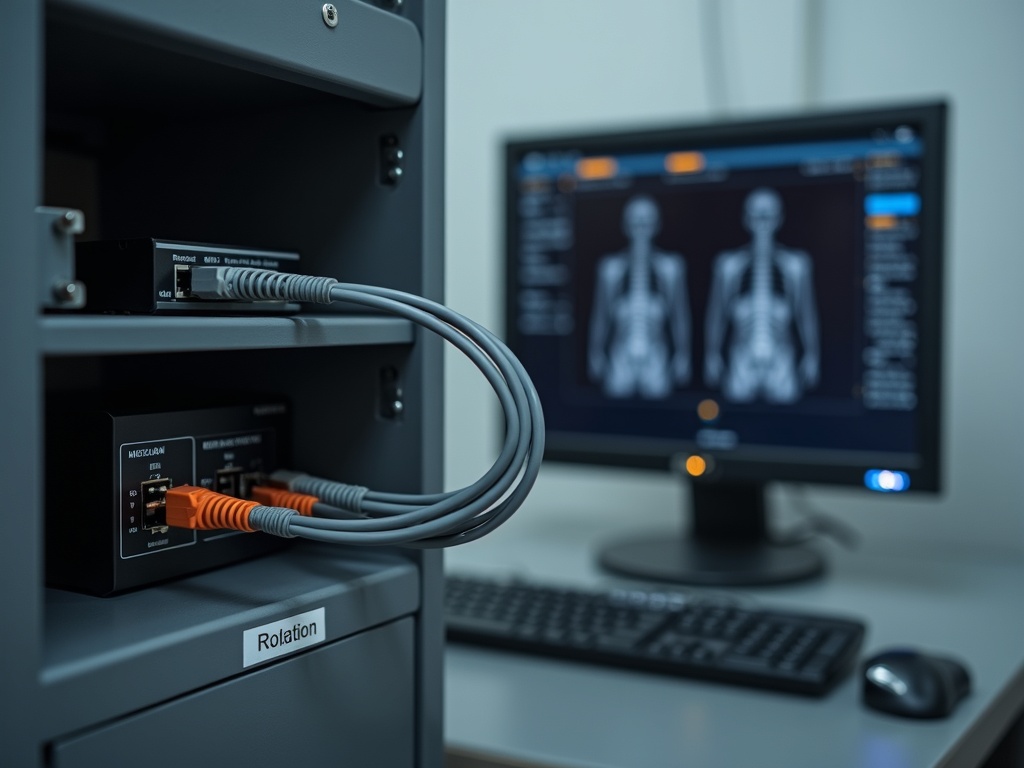
Fold a workstation review into the annual radiation and QA testing visit — the technician is already on site and already touching the imaging chain. Capture a configuration baseline: driver versions, exclusion list, power settings, disk state, and a copy of the vendor configuration and calibration files stored somewhere other than the machine itself. Each later visit becomes a comparison against that baseline, which makes “the images changed and nobody did anything” an answerable question rather than a guess.
The remaining piece is the handoff protocol. Agree in writing with the practice and its IT provider on who patches the operating system, who owns antivirus policy and its exclusions, who backs up the image store, who is called first when capture fails, and who must be consulted before the machine is re-imaged. That agreement takes one conversation and removes the orphan status that put eight clinic computers into somebody’s botnet.
Call for professional service when capture failures persist after driver reinstallation and power-management correction, when image-quality shifts cannot be traced to a processing-profile change, when SMART data or repeated database corruption indicates failing storage under a live image store, or before any workstation replacement or OS migration on a machine bound to calibrated detectors. That last one is not a difficult job — but it is only easy if it is planned.
Sources & further reading: