Digital X-Ray Sensor Connection and Communication Failures: USB, Ethernet, and Wireless Troubleshooting Guide

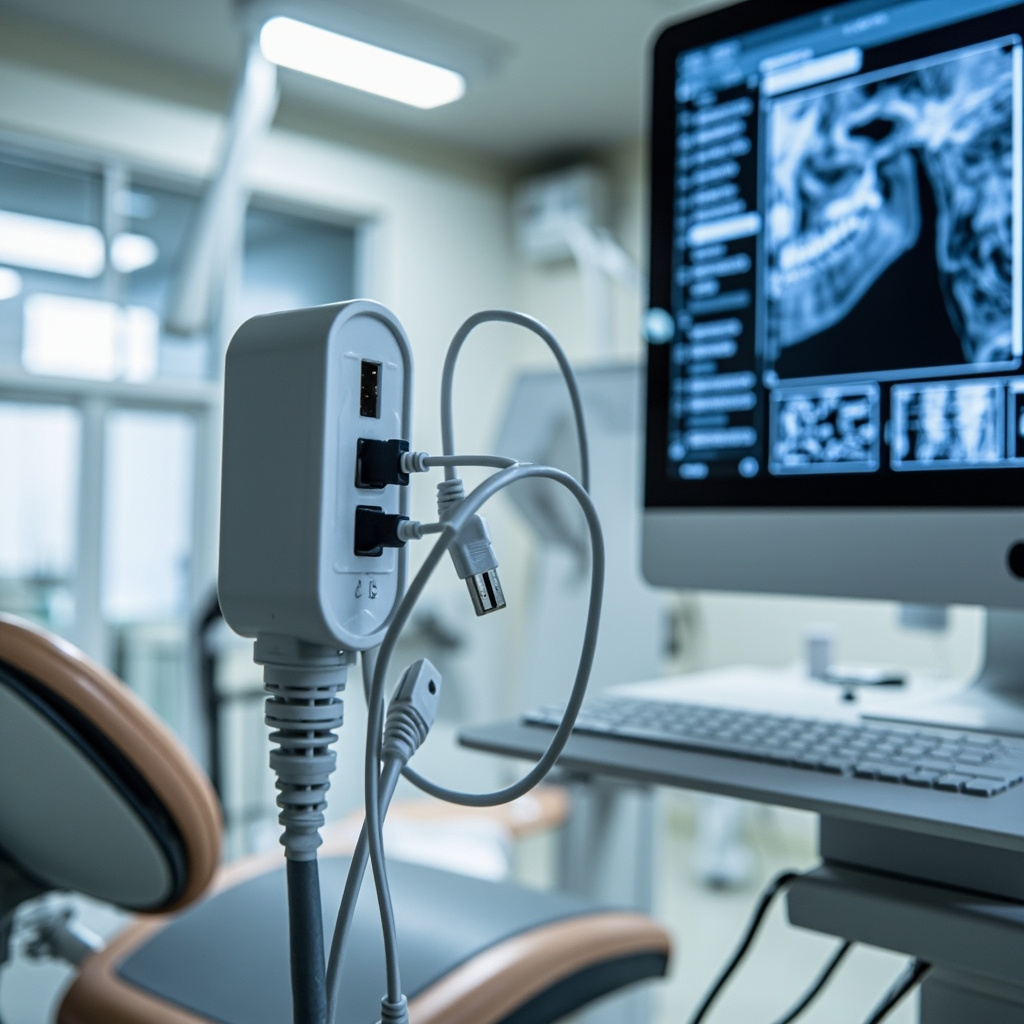
Digital X-ray sensors rely on stable connections to transmit image data from the sensor to the computer system. Connection and communication failures can disrupt dental workflow and prevent proper image acquisition. This comprehensive guide addresses common sensor connectivity issues and provides systematic troubleshooting approaches for USB, Ethernet, and wireless connections.
Understanding Digital Sensor Communication
Modern dental X-ray sensors use various communication protocols to transmit captured images to the imaging software. The most common connection types include:
- USB connections: Direct wired connection for immediate image transfer
- Ethernet networking: Network-based communication for distributed systems
- Wireless protocols: Wi-Fi or proprietary wireless for untethered operation
Each connection type has unique failure modes and troubleshooting requirements that dental professionals must understand to maintain optimal system performance.
USB Connection Troubleshooting
USB connectivity issues are among the most common sensor problems. These failures often manifest as sensor not being detected, intermittent connections, or failed image transfers.
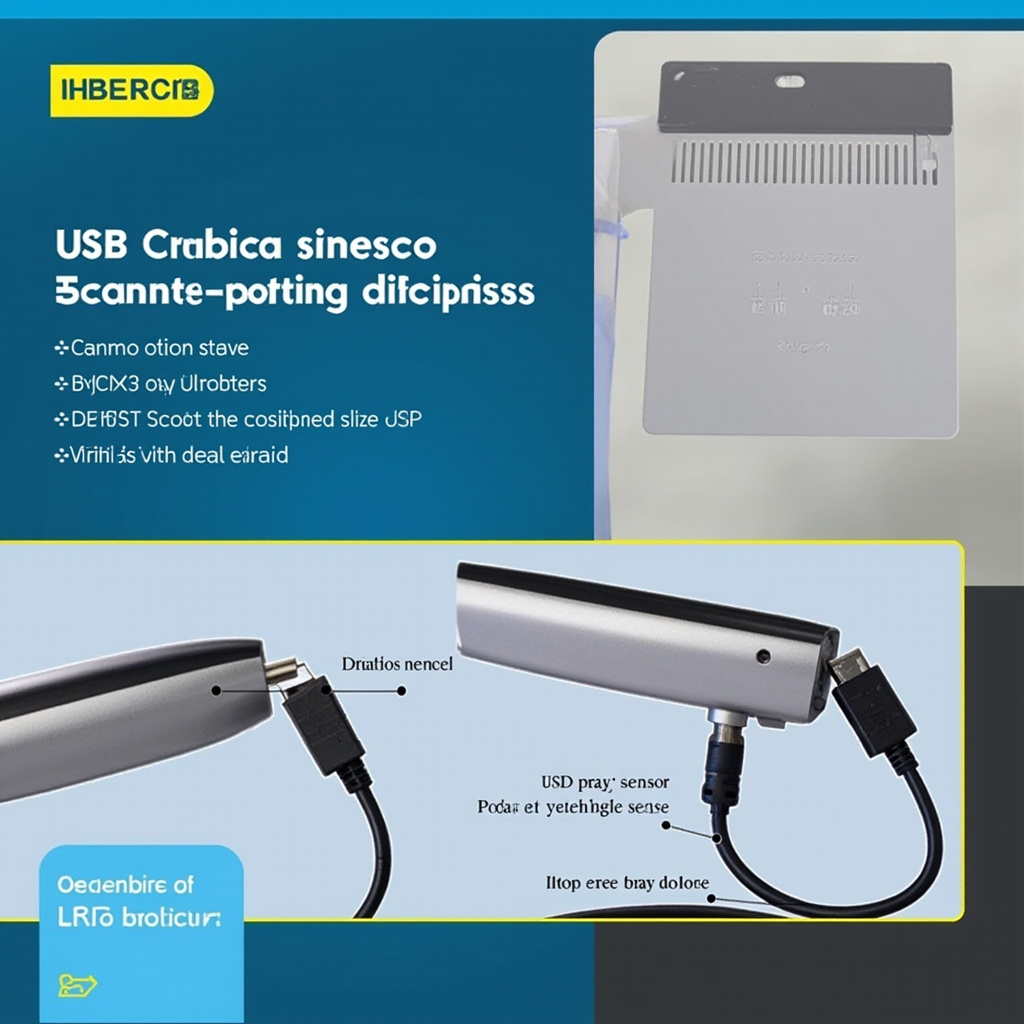
Common USB Issues and Solutions
Sensor Not Detected:
- Check USB cable connections at both sensor and computer ends
- Test with a different USB port, preferably USB 2.0 for older sensors
- Verify cable integrity by testing with a known working sensor
- Restart the imaging software and allow time for sensor recognition
Intermittent Connection Loss:
- Examine cable for kinks, bends, or damage near connectors
- Check USB port for loose connections or debris
- Disable USB power management in Windows Device Manager
- Update USB drivers and sensor software to latest versions
Failed Image Transfers:
- Monitor system resources – insufficient memory can cause transfer failures
- Close unnecessary applications to free system bandwidth
- Check for Windows updates that might affect USB subsystem
- Test sensor on a different computer to isolate hardware issues
Network and Ethernet Connectivity Issues
Networked X-ray systems require proper network configuration and stable Ethernet connections. Network issues can prevent sensor communication and image storage to central servers.

Network Troubleshooting Steps
IP Address Configuration:
- Verify sensor has correct static IP address or DHCP assignment
- Check subnet mask and gateway settings match network requirements
- Test connectivity with ping commands to sensor IP address
- Ensure no IP conflicts exist on the network
Network Infrastructure:
- Test Ethernet cable with cable tester or known working device
- Check switch port status and LED indicators
- Verify network switch or router isn’t dropping connections
- Monitor network traffic for congestion or bandwidth issues
Firewall and Security:
- Configure Windows Firewall exceptions for imaging software
- Check antivirus software isn’t blocking sensor communication
- Verify network security settings allow sensor traffic
- Test with temporarily disabled security software to isolate issues
Wireless Sensor Connectivity
Wireless X-ray sensors offer mobility but introduce additional complexity. Wireless failures can stem from signal interference, authentication issues, or power management problems.
Wireless Troubleshooting Protocol
Signal Quality Assessment:
- Check Wi-Fi signal strength at sensor location
- Identify potential interference from other devices
- Test different wireless channels to avoid congestion
- Position access point for optimal coverage in operatory
Authentication and Security:
- Verify correct WPA/WPA2 passphrase entry
- Check MAC address filtering settings on access point
- Ensure sensor certificate is valid and trusted
- Test with open network to isolate security issues
Power and Battery Management:
- Monitor sensor battery levels and charging status
- Check power saving modes aren’t interfering with connectivity
- Verify charging dock connections and power supply
- Test sensor performance during different charge levels
Advanced Diagnostic Techniques
When basic troubleshooting fails, advanced diagnostic methods can identify complex connectivity issues:
Software Diagnostics
Use built-in diagnostic tools within the imaging software to test sensor communication. Most professional systems include connection testing utilities that can identify specific failure points.
System Log Analysis
Review Windows Event Logs for USB, network, or device driver errors that correlate with sensor failures. Look for error codes that can guide specific troubleshooting approaches.
Network Packet Analysis
For networked systems, use network monitoring tools to capture and analyze communication between sensors and imaging computers. This can reveal timeout issues, protocol errors, or bandwidth limitations.
Preventive Maintenance
Regular maintenance prevents many connectivity issues:
- Monthly inspection of all cables and connectors
- Quarterly network configuration backup and verification
- Annual sensor firmware and driver updates
- Documentation of network settings and troubleshooting history
When to Contact Technical Support
Contact manufacturer support when:
- Hardware diagnostics indicate sensor failure
- Multiple troubleshooting approaches have failed
- Intermittent issues persist despite systematic testing
- Firmware updates are required but not available publicly
Maintaining reliable digital X-ray sensor connectivity requires systematic troubleshooting approaches and regular preventive maintenance. By understanding common failure modes and implementing proper diagnostic procedures, dental practices can minimize disruption and ensure consistent image acquisition capabilities.